Remediation Method
Identifying where a document has been created as part of the reconciliation process
Creating patient list reports:
- Navigate to Clinical Reporting
- Create a report that identifies all patients that have our documentation present in their record
- Click New
- Name the report 'Document Exists' and select a suitable category and sub category
- Within Registration:
- Select Registration Type and ensure each box is ticked
- Select Registration Status and ensure each registration type box is ticked
- Within Clinical:
- Select Event Staff & Location:
- Tick 'Event Done By'
- Select our user account using the magnifying glass
- Select Letters, tick 'Letter Exists'
- Click Ok
- Create a sub-report to identify those patients who are considered potentially at risk of harm as part of accelerated online patient access, who have a document present in their record
- present in their record
- Click the 'Search for...' function within the lefthand sidebar
- Type 'under safeguarding' and click search
- If a report named 'Under safeguarding, excluding already have full online access' appears please skip to step d, if it does not appear please follow the steps below:
- In the search bar in the bottom left of the clinical system type 'Resource' and click to open the Resource Library
- In the search box type 'Under safeguarding'
- Click Search
- This is likely to return multiple reports, right click on the report with the most downloads (found on the righthand side) and click 'Download Resource'
- Repeat step c and the report should now show
- Highlight the 'Under safeguarding, excluding already have full online access' report, click Copy
- Rename the report 'Remediation - Under Safeguarding' and select the same category and sub category as previously
- Within Registration:
- Select Registration Type and ensure each box is ticked
- Select Registration Status and ensure each registration type box is ticked
- Within Report Joining:
- Click 'Join to two records'
- On 'Join to report two', click 'Clear report' so you are left with just the Safeguarding report
- Click 'Select report two'
- Click 'Search reports...' on the lefthand sidebar
- Type in document exists into the search bar, tick 'Search report names'
- Click search
- Click to select the Document Exists search and click Ok
- Use the
button to move the Document Exists report to report one and the Safeguarding report to report two
- Select the Join type of 'Report on patients found in both the selected reports'
- Click ok
- Create a sub-report to identify those patients who may have already self-identified the risk of sharing their information who have a document present in their record
- Click New
- Name the report 'Remediation - Self-identified Cases' and select the same category and sub category as previously
- Within Registration:
- Select Registration Type and ensure each box is ticked
- Select Registration Status and ensure each registration type box is ticked
- Within Clinical:
- Select Record Sharing and tick 'Codes'
- Click Select codes
- Click the S button in the first box, under 'Specific codes to match on'
- Type in 'Dissent from' and select the code 'Dissent from secondary use of general practitioner patient identifiable data (827241000000103)'
- Click Ok, then Ok again
- Within Report Joining:
- Click 'Join to one report'
- Click 'Select report'
- Click 'Search reports...' on the lefthand sidebar
- Type in document exists into the search bar, tick 'Search report names'
- Click search
- Click to select the Document Exists search and click Ok
- Ensure the 'Only report on patients found in the...' option is selected
- Click Ok
Creating sub-reports/worklist reports:
To prioritise those patients that are deemed most likely to be impacted we will separate the patients who have documentation on their record into phased worklists.
- Create a sub-report to identify patients for the Phase 1/2 worklist
- Highlight the 'Remediation - Under safeguarding' report, click Copy
- Rename the report 'Remediation - Phase 1/2 Worklist' and select the same category and sub category as previously
- Within Report Joining:
- Join the report to 'Remediation - Self-identified Cases' & 'Remediation - Under Safeguarding' with a join type of 'Report on patients found in either of the selected reports'
- Click ok
- Create a sub-report to identify patients for the Phase 3/4 worklist
- Highlight the 'Remediation - Phase 1/2 Worklist' report, click Copy
- Rename the report 'Remediation - Phase 3/4 Worklist' and select the same category and sub category as previously
- Within Report Joining:
- Join the report to 'Document Exists' & 'Remediation - Phase 1/2 Worklist' with a join type of 'Report on patients found in report one but not in report two'
- Click ok
- Create a sub-report to identify patients who have online access to their full clinical record
- Highlight the 'Remediation - Phase 3/4 Worklist' report, click Copy
- Rename the report 'Remediation - Online Access to Full Clinical Record from before 30/01/25' and select the same category and sub category as previously
- Within Registration:
- Select Online Services and tick 'Registered for online services'
- Tick 'Access to full clinical record'
- Tick 'Services granted'
- Use the dropdown to select Before and enter the date 30/01/25
- Within Report Joining:
- Clear the joined reports, select 'Join to one report'
- Join to 'Document Exists' with the join type of 'Only report on patients found in the 'Document Exists (PPARS/Remediation)' report
- Click ok
- Create a worklist report to identify patients for the Phase 1 worklist
- Highlight the 'Remediation - Phase 1/2 Worklist' report, click Copy
- Rename the report 'Remediation - Phase 1 Worklist - Have Online Access' and select the same category and sub category as previously
- Within Report Joining:
- Join the report to 'Remediation - Online Access to Full Clinical Record from before 30/01/25' & 'Remediation - Phase 1/2 Worklist' with a join type of 'Report on patients found in both the selected reports'
- Click ok
- Create a worklist report to identify patients for the Phase 2 worklist
- Highlight the 'Remediation - Phase 1/2 Worklist' report, click Copy
- Rename the report 'Remediation - Phase 2 Work List - Does Not Have Online Access' and select the same category and sub category as previously
- Within Report Joining:
- Join the report to 'Remediation - Online Access to Full Clinical Record from before 30/01/25' & 'Remediation - Phase 1/2 Worklist' with a join type of 'Report on patients found in report two but not in report one'
- Click ok
- Create a worklist report to identify patients for the Phase 3 worklist
- Highlight the 'Remediation - Phase 3/4 Worklist' report, click Copy
- Rename the report 'Remediation - Phase 3 Worklist - Have Online Access' and select the same category and sub category as previously
- Within Report Joining:
- Join the report to 'Remediation - Online Access to Full Clinical Record from before 30/01/25' & 'Remediation - Phase 3/4 Worklist' with a join type of 'Report on patients found in both the selected reports'
- Click ok
- Create a worklist report to identify patients for the Phase 4 worklist
- Highlight the 'Remediation - Phase 3/4 Worklist' report, click Copy
- Rename the report 'Remediation - Phase 4 Work List - Does Not Have Online Access' and select the same category and sub category as previously
- Within Report Joining:
- Join the report to 'Remediation - Online Access to Full Clinical Record from before 30/01/25' & 'Remediation - Phase 3/4 Worklist' with a join type of 'Report on patients found in report two but not in report one'
- Click ok
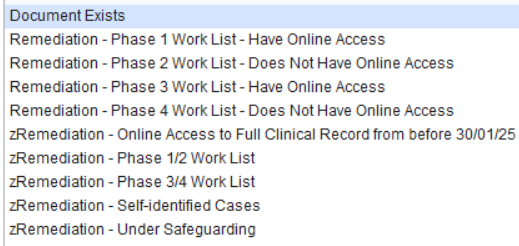
You will end up with 10 reports, you may wish to add 'z' in front of the sub-reports to clearly identify the worklists as below. The remediation work will be undertaken for:
- Remediation - Phase 1 Work List - Have Online Access
- Remediation - Phase 2 Work List - Does Not Have Online Access
- Remediation - Phase 3 Work List - Have Online Access
- Remediation - Phase 4 Work List - Does Not Have Online Access
Creating Patient Record View in Tabbed Journal
- Open a test patient within you clinical system
- Navigate to the Tabbed Journal
- Use the + button to create a new view
- Fill in the details as follows:
- Tab Name as Remediation
- Tick 'Events recorded by specific staff or organisation'
- Select our user account
- Click Ok
Undertaking Remediation
- Navigate back to Clinical Reporting
- Select the 'Remediation - Phase 1 Work List - Have Online Access' report
- Click the ‘Show the patients in the selected report’ function
- Select the first patient, right click and select Retrieve
- Navigate to the Tabbed Journal
- If not already selected, navigate to the Remediation tab
- Click the 'Select all' function
- Click the 'Change the online visibility of the selected consultation(s)' dropdown
- Select 'Do not show in the online record'
- Add the reason 'Remediation'
- Click Ok
- Save the patient record
- Repeat steps 4-12 for all patients within the 'Remediation - Phase 1 Work List - Have Online Access' report
- Repeat the process for all patients within the 'Remediation - Phase 2 Work List - Does Not Have Online Access', 'Remediation - Phase 3 Work List - Have Online Access' & 'Remediation - Phase 4 Work List - Does Not Have Online Access' reports
Related Articles
Data Protection
Please see attached files regarding data protection relating to GP Profit Recovery. DSPT Toolkit Data Processing Impact Assessment - SystmOne Data Processing Impact Assessment - EMIS ISO-27001 Jersey Office of Information Commissioner Privacy Policy ...